

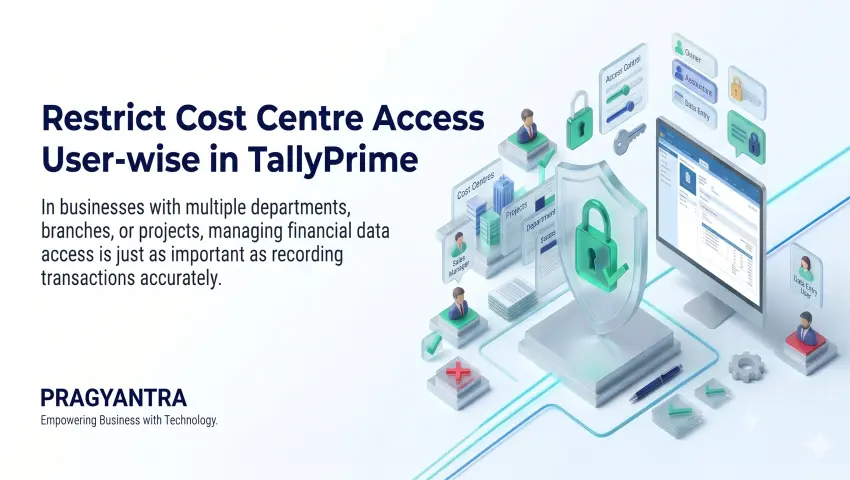

How to Restrict Cost Centre Access User-wise in TallyPrime?
In businesses with multiple departments, branches, or projects, managing financial data access is just as important as recording transactions accurately. When several employees work in the same TallyPrime company, they may need access to different Cost Centres based on their responsibilities.
Without user-wise Cost Centre restrictions, employees may be able to select Cost Centres outside their assigned departments. This can create problems such as incorrect expense allocation, unnecessary visibility into other departments' financial data, and weaker internal controls.
Pragyantra's Enable User-wise Cost Centre Security Control add-on helps businesses manage this access by assigning specific Cost Centres to individual Tally users.
Why Is User-wise Cost Centre Access Important?
Cost Centres help businesses track expenses and financial performance across departments, projects, branches, and other business units.
For example, a company may maintain separate Cost Centres for:
- Sales Department
- Marketing Department
- Production Department
- HR Department
- Branch Office A and Branch Office B
- Individual construction or service projects
If every user can access every Cost Centre, employees may select an incorrect Cost Centre while recording transactions or view financial information outside their responsibilities.
User-wise access control helps businesses follow a need-to-know approach, where employees work only with the Cost Centres assigned to them.
What Is User-wise Cost Centre Security in TallyPrime?
User-wise Cost Centre Security is a permission-based control that allows administrators to map specific Cost Centres to individual Tally users.
With Pragyantra's add-on, administrators can configure which Cost Centres each user is allowed to access.
For example:
| Tally User | Assigned Cost Centres |
|---|---|
| Sales Executive | Sales Department |
| Production Manager | Production Department |
| HR Manager | HR Department |
| Project Manager | Project A, Project B |
| Administrator | All Cost Centres |
During voucher entry, the Cost Centre selection list is filtered according to the logged-in user's permissions.
This helps prevent users from selecting Cost Centres that have not been assigned to them.
Key Features of Pragyantra's User-wise Cost Centre Security Add-on
1. User-wise Cost Centre Mapping
Assign specific Cost Centres to individual Tally users according to their department, role, or project responsibilities.
An administrator can assign one Cost Centre or multiple Cost Centres to a single user.
2. Automatic Cost Centre Selection Filter
When a user enters a voucher, the add-on automatically filters the Cost Centre selection list based on that user's assigned permissions.
Users can work with their permitted Cost Centres without having to search through unrelated options.
3. Restrict Unauthorized Cost Centre Entries
Users cannot select restricted Cost Centres during supported voucher entry operations.
This helps reduce the possibility of expenses being recorded under the wrong department or project.
4. Cost Centre Report Access Control
Restricted users can view Cost Centre reports only for the Cost Centres they are authorized to access.
Administrators retain visibility across all Cost Centres.
5. Multiple Cost Centres for One User
Businesses can assign a single Cost Centre, a group of Cost Centres, or multiple individual Cost Centres to a user, depending on their responsibilities.
6. Role-based Access for Administrators and Operators
Administrators can retain full Cost Centre access while operators and other users work with restricted permissions.
7. Support Across Voucher Types
The add-on works with supported voucher types where Cost Centres are used, including:
- Payment Voucher
- Receipt Voucher
- Journal Voucher
- Purchase Voucher
- Sales Voucher
How Does User-wise Cost Centre Security Work?
The process is based on user permissions configured by the administrator.
Step 1: Identify Cost Centres
Create and organize Cost Centres according to your departments, branches, or projects.
Step 2: Identify Tally Users
List the users who need access to specific Cost Centres.
Step 3: Configure User-wise Permissions
Map the relevant Cost Centres to each user through the add-on's security configuration.
Step 4: Start Voucher Entry
When a user logs in and enters a supported voucher, the Cost Centre selection list is filtered according to the assigned permissions.
Step 5: Review Cost Centre Reports
Restricted users can view permitted Cost Centre information, while administrators retain access to all Cost Centres.
Practical Business Use Cases
Multi-Branch Businesses
A company operating multiple branches can assign each branch manager access to their respective branch Cost Centre.
This helps maintain separation between branch-level accounting activities.
Construction and Project-based Companies
Construction companies can assign project-specific Cost Centres to project managers or site engineers.
For example, a project manager responsible for Project A can be restricted to the Cost Centre assigned to that project.
Service Agencies
Agencies with separate departments such as Marketing, HR, Operations, and Finance can assign Cost Centres according to employee responsibilities.
This helps keep departmental expense information appropriately separated.
Manufacturing Businesses
Manufacturing businesses can organize Cost Centres around production and other departments, then assign access based on the responsibilities of their employees.
Business Benefits of User-wise Cost Centre Security
Better Financial Confidentiality
Limit access to departmental and project-wise financial information.
Improved Expense Allocation
Reduce incorrect Cost Centre selection during supported voucher entry.
Stronger Internal Controls
Define which users can access specific Cost Centres.
Departmental Accountability
Keep financial activities organized according to assigned responsibilities.
Controlled Reporting
Restrict Cost Centre report visibility for users without the required permissions.
Why Choose Pragyantra for TallyPrime Customization?
Every business has different accounting workflows and user access requirements. Pragyantra helps businesses extend TallyPrime with practical customization and automation solutions.
Relevant solutions include:
- TallyPrime Customization: Adapt TallyPrime to business-specific accounting and operational requirements. Explore TallyPrime Customization
- Tally API Integration: Connect Tally with other business applications and systems through integration solutions. Explore Tally API Integration
Explore Pragyantra's solutions: https://www.pragyantra.com
Frequently Asked Questions
1. Can I restrict Cost Centre access for individual users in TallyPrime?
Yes. Pragyantra's User-wise Cost Centre Security add-on allows administrators to assign specific Cost Centres to individual Tally users.
2. Can one user access multiple Cost Centres?
Yes. Administrators can assign a single Cost Centre, a group of Cost Centres, or multiple individual Cost Centres to one user.
3. Can restricted users select unauthorized Cost Centres during voucher entry?
No. The add-on filters the Cost Centre selection list and prevents users from selecting Cost Centres that have not been assigned to them.
4. Does the add-on restrict Cost Centre reports?
Yes. Restricted users can view Cost Centre reports only for the Cost Centres they are permitted to access. Administrators retain access to all Cost Centres.
5. Does it work with different voucher types?
Yes. It supports Payment, Receipt, Journal, Purchase, and Sales vouchers where Cost Centres are used.
6. What happens when a new Cost Centre is created?
New Cost Centres are restricted by default. The administrator needs to assign the new Cost Centre to the relevant users through the security configuration.
7. Is the add-on compatible with Tally ERP 9?
Yes. The product page lists compatibility with both TallyPrime and Tally ERP 9.
Control Cost Centre Access in TallyPrime with Pragyantra
Managing multiple departments, branches, and projects requires clear financial access controls.
With Pragyantra's Enable User-wise Cost Centre Security Control add-on, businesses can map Cost Centres to individual users, restrict unauthorized selection, and control Cost Centre report visibility.
Make departmental accounting more organized with user-wise Cost Centre permissions.
Request a Demo Today
Contact Pragyantra to discuss your TallyPrime Cost Centre access requirements.
🏢 Pragyantra Solutions | Phone: +91 77280 57558 | Web: www.pragyantra.com
TallyPrime User-wise Cost Centre Security Control Add-on | Tally Customisation | Financial Access Management