Enable User-wise Button/Key Access Control
Control shortcut keys and button access user-wise in TallyPrime with Pragyantra’s add‑on. Improve security, prevent errors, and manage user actions effectively.
Introducing Our New Business Consulting Solutions!
Revolutionize Your Business Strategy with Our Expertise.
Elevate Your Business with Our Comprehensive Consulting Services.


AI-Powered Business Intelligence Dashboard delivers real-time insights, automation, and seamless integration with Tally, Zoho, Oracle, and SAP—all in one clean platform.
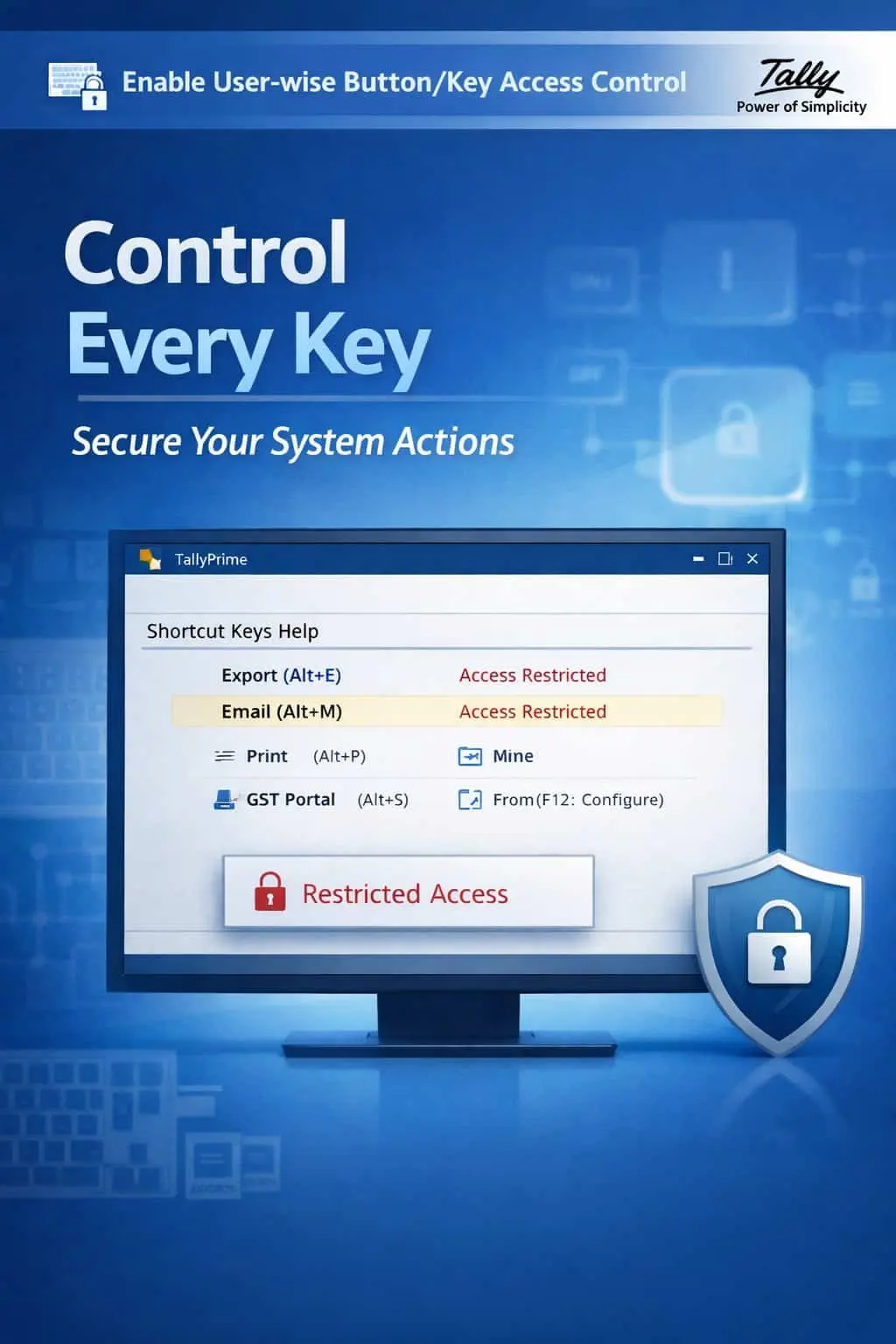

Control shortcut keys and button access user-wise in TallyPrime with Pragyantra’s add‑on. Improve security, prevent errors, and manage user actions effectively.
In TallyPrime, power-users rely heavily on shortcut keys (F-keys, Alt combinations, Ctrl keys) to speed up work. However, in a multi-user environment, giving this same "power" to every operator can be dangerous. Unrestricted access to shortcut keys often leads to:
The Enable User-wise Button/Key Access Control Add‑on by Pragyantra allows businesses to "Switch Off" specific buttons and shortcut keys for selected users, ensuring total operational discipline.
This add‑on is a custom Tally module that acts as a "Function Filter." With this add‑on installed, Tally can:
Control is the foundation of data security. If your billing clerk can accidentally delete a three-month-old invoice with a simple Alt+D, your internal audit is at risk. The Pragyantra Key Control Add‑on ensures that users can only perform actions they are authorized for, reducing human error and preventing internal data tampering.
User-wise Key Restriction
Select and disable specific shortcut keys (F1 to F12, Alt/Ctrl combinations) for individual user profiles.
Button-Level Access Control
Restrict access to the right-side button bar in Tally, making certain functions unclickable for unauthorized staff.
Role-Based Permissions
Create "Security Levels" where different roles have different "Keyboard Powers" within the system.
System-Wide Protection
Works across Voucher Entry screens, Reports, Masters, and Inventory modules for consistent security.
Lightweight & Instant
Optimized TDL architecture that enforces key-blocks in real-time without lagging the user experience.
This add‑on works with:
✔ TallyPrime
✔ Tally ERP 9
1. Can I disable specific keys like 'Alt+D' (Delete) while keeping other shortcuts active?
Yes. You have granular control. You can choose to block only high-risk keys like Delete or Cancel while allowing regular navigation shortcuts.
2. What happens if a user presses a restricted shortcut key?
Tally will simply ignore the command or display a "No Access" message, preventing the action from being executed.
3. Does this add-on restrict the Administrator (Admin) too?
No. The 'Admin' or 'Owner' profile always retains full keyboard and button rights. This add-on is designed to manage and limit 'Standard' user roles.
4. Can I restrict the 'Print' (Ctrl+P) or 'Export' (Ctrl+E) shortcuts?
Yes. If you want to prevent unauthorized data sharing, you can block the print and export buttons/keys for specific users.
<
Stop accidental data loss and unauthorized system access. Master your TallyPrime security by controlling shortcut keys with Pragyantra.
👉 Contact Pragyantra today to professionalize your TallyPrime security and enforce strict system discipline.
Your email address will not be published. Required fields are marked *
Please login to write review!
Looks like there are no reviews yet.